Revit for
CORENET X
(IFC+SG)
Prepare, model, validate, and troubleshoot IFC+SG submissions using Revit for CORENET X.
Choose your next step
Select a section to start. Only one section will open at a time.
Before Starting
Review the onboarding checklist and general modelling practices before setting up Revit.
IFC+SG Onboarding Checklist
Understand the IFC+SG workflow, setup sequence, and submission preparation process.
Explore onboarding checklist →General Modelling Practices
Review federation, coordinates, levels, naming consistency, and IFC modelling practices.
Explore General Modelling Practices →Required Applications
Install and update the required applications before preparing IFC+SG models.
Keep Revit Updated
Keeps Revit stable and compatible with IFC workflows, interoperability tools, and export fixes.
View update guide →Revit Interoperability Tools
Required for IFC+SG workflows, shared parameter setup, and interoperability support.
Download tool →Latest IFC Exporter
Required for exporting IFC models from Revit using the latest IFC export engine.
Download IFC exporter →IFC+SG Setup Files
Download the required IFC+SG setup resources for parameters, subtype values, and IFC export.
Choose your Revit version
Download the complete IFC+SG setup package for your Revit version. The package is created automatically when you click Download package.
Revit 2024–2026
Includes Shared Parameters, Property Set Files, and IFC+SG Subtype Files.
Revit 2023
Includes Shared Parameters, Property Set Files, IFC+SG Subtype Files, and the additional IFC Exporter JSON files.
Revit 2022 and below
Includes Shared Parameters, Property Set Files, IFC+SG Subtype Files, and the additional IFC Exporter JSON files.
Choose individual setup files
Download individual IFC+SG setup files when you only need a specific resource. Select a file below, then choose the applicable Revit version.
IFC+SG Shared Parameters
Adds IFC+SG data fields into Revit for IFC export and submission workflows.
Property Set Files
Controls which IFC+SG information exports into IFC from Revit.
IFC+SG Subtype Files
Defines IFC+SG subtype values used for classification, checking, and submission workflows.
Reference & Supporting Resources
Additional IFC and IFC+SG reference guides for Revit workflows.
Revit IFC+SG How-To Guide
Older IFC+SG Revit guide. Some steps, screenshots, interface labels, or icons may differ from the current software version.
Open guide →Revit IFC Open BIM Manual
Autodesk IFC export and Open BIM reference manual for Revit users.
Open manual →Geo-reference Setup Steps
Set up shared coordinates and geo-reference the Revit model correctly before IFC export.
Acquire Coordinates from Architectural Model
Use the architectural model as the coordination reference when setting up shared coordinates.
Acquire Coordinates from Civil 3D Reference Model
Use the Civil 3D reference model as the coordination reference when setting up shared coordinates in Revit.
Avoid Duplicate GUIDs in IFC
Prevent duplicated IFC GUIDs caused by reused templates, copied levels, or repeated model setup.
Duplicate Block at File Level
Use a controlled workflow when reusing typical blocks, towers, or repeated Revit files.
Correct Family Details
Model families with the right level of detail and avoid over-detailed elements that slow down review.
Where to Key in USERDEFINED Values
Set IFC PredefinedType to USERDEFINED and enter the required IFC ObjectType value correctly.
MEP SystemType & SystemName
Populate the required IFC parameters for MEP elements before exporting to IFC+SG.
Export Gridlines to IFC
Set up grid visibility and export settings so gridlines appear correctly in IFC viewers.
IFC Export Settings
Check Revit IFC export setup, property mapping, coordinates, and IFC+SG export configuration.
Using a Different Element for Modelling
Learn how to assign the correct IFC entity, subtype, and required properties when using an alternative Revit element.
Why can't I select my Property Sets file?
This usually happens when the standard IFC-SG Regulatory Requirements View Setup is selected in Revit IFC export settings.
I received Written Direction saying my model is not coordinated
Check model federation, georeference setup, IFC export coordinate settings, and coordinate values before resubmission.
I was told that I have micro model issue. How to fix?
Check model coordinates, IFC export coordinate settings, and stray elements that may cause the model to appear very small or far away.
Why are some elements missing after IFC export from Revit 2025 or 2026?
Some elements may be missing when exporting from Revit 2025 or 2026, particularly when linked files contain slabs, openings or coverings.
No matching issue found
Try another keyword or reset the filter to "All".
Why can't I select my Property Sets file?
You are likely using the standard IFC-SG Regulatory Requirements View Setup in Revit IFC export settings. This standard setup is locked, so the Property Sets file field cannot be edited directly.
Duplicate the standard setup by clicking "Create a new setup based on the selected setup". After that, go back to the Property Sets file field. You should now be able to select the latest Property Sets file.
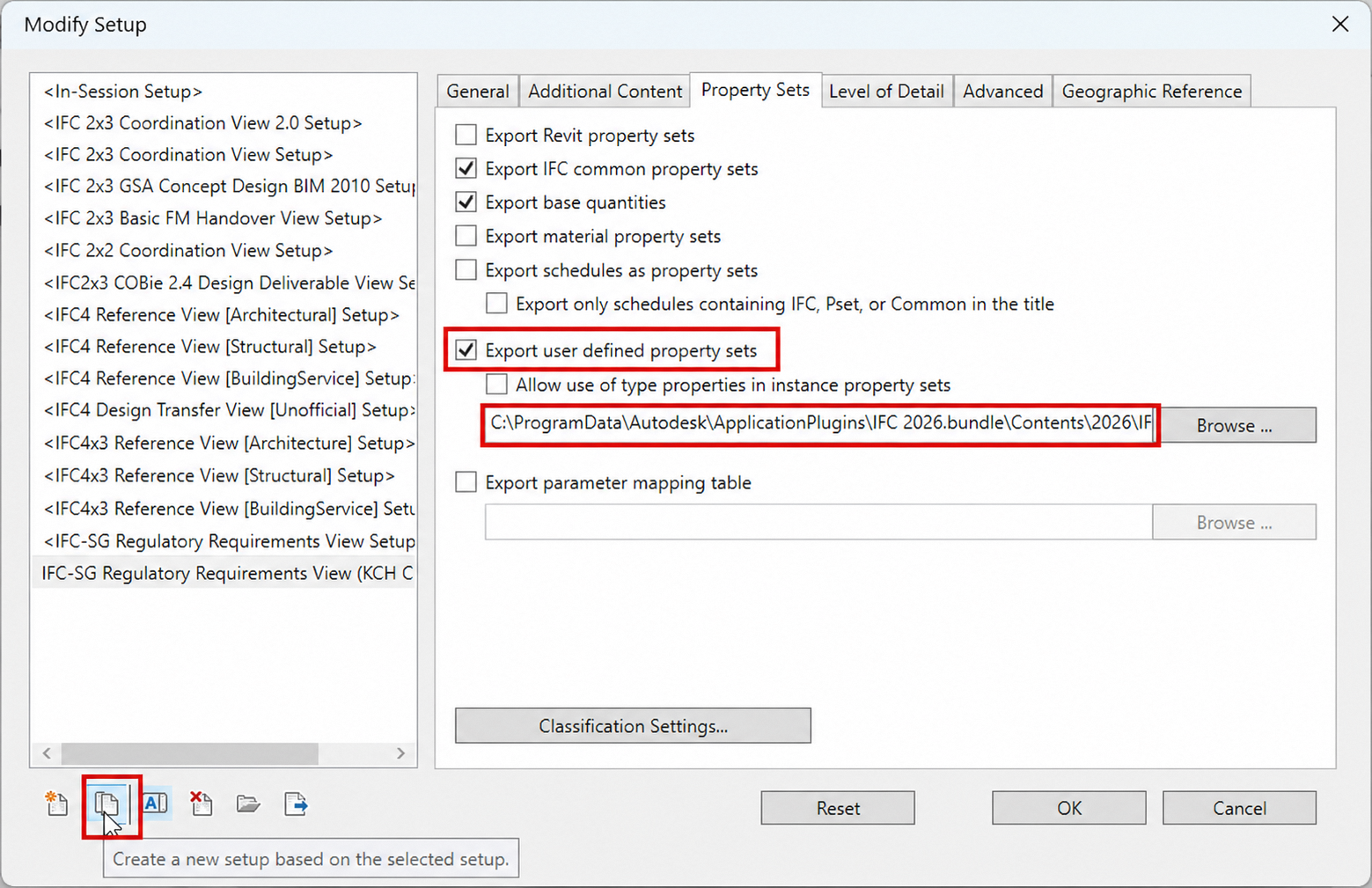
Learn the proper Revit IFC export settings here:
Revit IFC export settings
Download the latest IFC export resources here:
Revit BIM Authoring Tools
I received Written Direction saying my model is not coordinated, or have georeference issue
1. Your model did not federate correctly.
2. Your model federated correctly, but the coordinates are wrong.
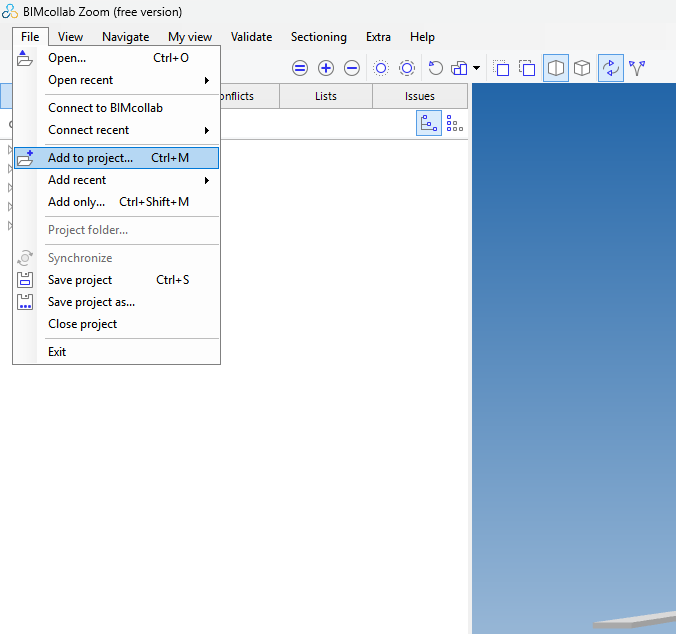
1. Federate the IFC models using an IFC viewer and confirm that all discipline models align correctly. For example, BIMcollab Zoom free version allows you to load and federate multiple IFC models for coordination checking.
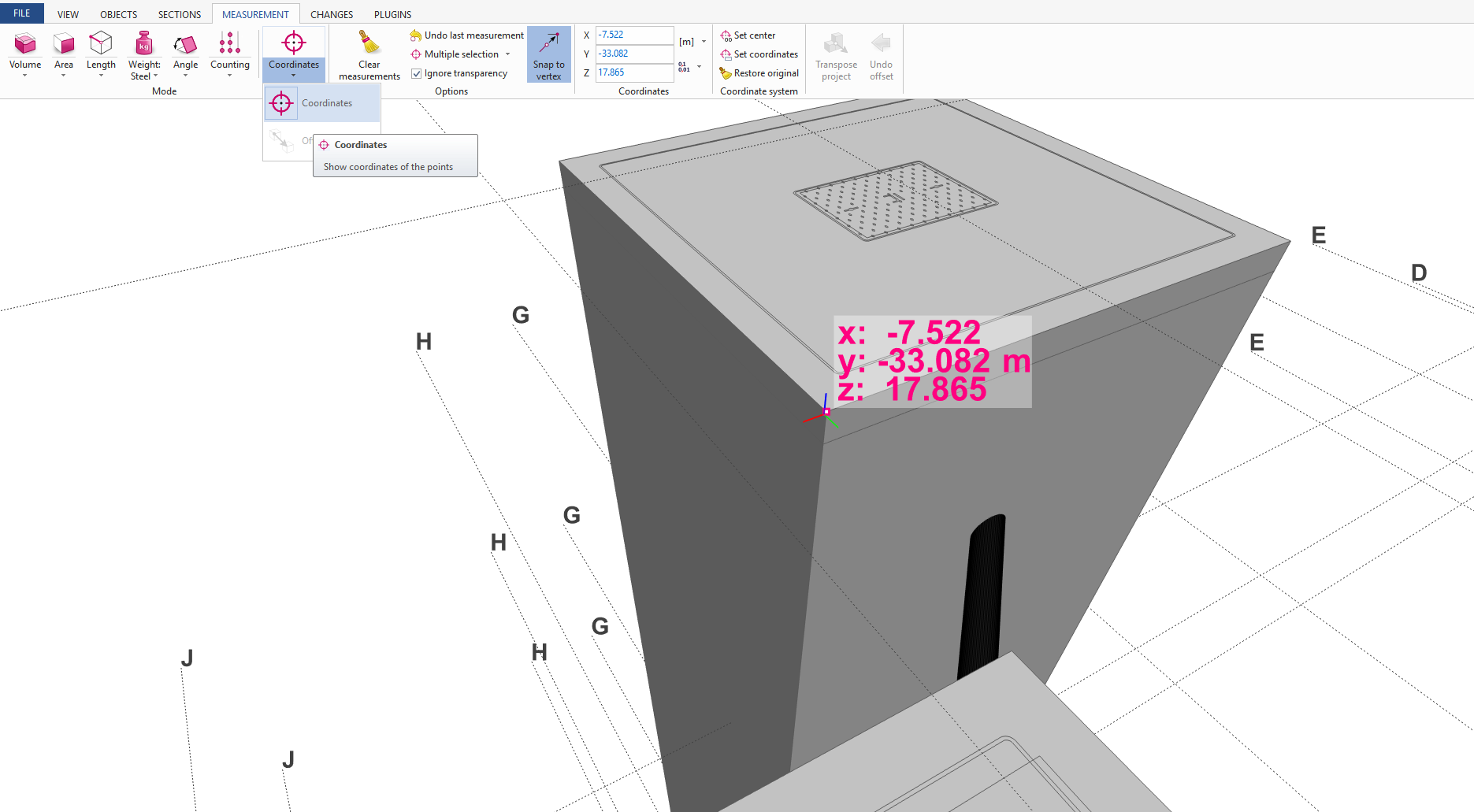
2. Spot coordinates using an IFC viewer, such as BIMVision. Compare the selected IFC coordinate against the same point in the Revit model to confirm that the exported IFC coordinate matches the native model coordinate.
i. Wrong IFC export settings were used. Always check IFC Export Settings > Coordinate Base for all models. Refer to: Proper IFC Export Settings
ii. Coordinates keyed into the Project Base Point or Survey Point are wrong. Refer to: Geo-reference Setup Steps and Acquire Coordinates from Architectural Model
I was told that I have micro model issue. How to fix?
When the IFC models are federated, the models appear extremely small or very far away from the expected location.
This is possibly caused by incorrect coordinate setup or inconsistent IFC export coordinate settings.
1. Wrong IFC export settings may have been used. Always check IFC Export Settings > Coordinate Base for all models. Refer to: Proper IFC Export Settings
2. Coordinates keyed into the Project Base Point or Survey Point may be wrong. Refer to: Geo-reference Setup Steps and Acquire Coordinates from Architectural Model
If a single IFC model already appears zoomed out in the IFC viewer, the model may contain stray elements that were accidentally exported far away from the main model.
1. From the IFC viewer, select the stray element and check the Revit Element ID. Search the same Element ID in Revit to identify the problematic object.
2. In Revit, uncrop the 3D view and check if there are elements located far away from the main model.
3. Check Visibility/Graphics Overrides for the 3D view, especially imported categories such as CAD drawings.
Why are some elements missing after IFC export from Revit 2025 or Revit 2026?
We have observed cases where IFC models exported from Autodesk Revit 2025 and Revit 2026 contain invalid IFC representation references. As a result, some elements may appear missing in software that performs strict IFC validation or parsing.
The issue has been observed on:
• IfcSlab
• IfcOpeningElement
• IfcCovering
The issue has been observed when using Revit 2025 or Revit 2026 where linked files contain slabs, openings or coverings.
Missing element example from an exported IFC:
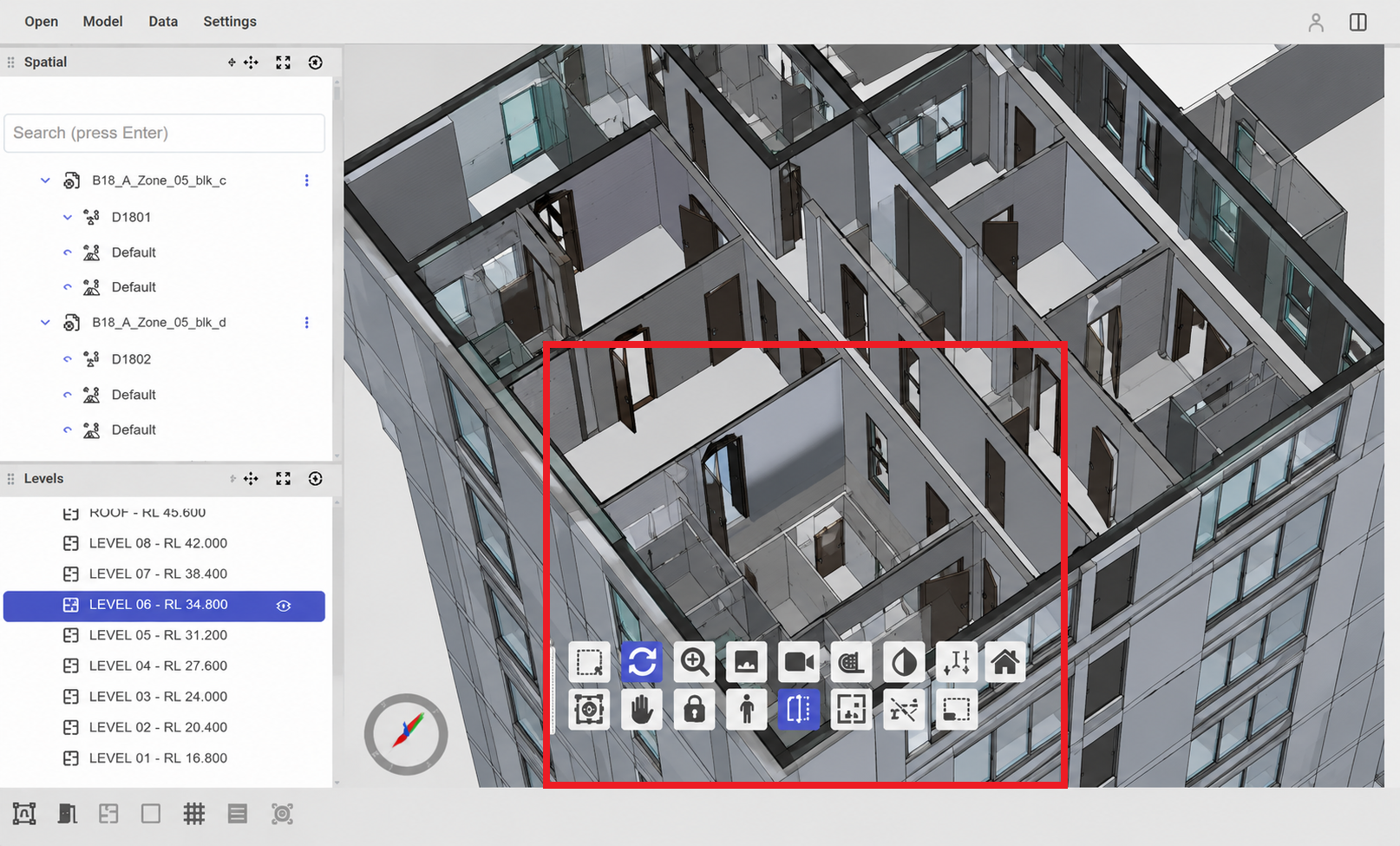
Even if you can still see the elements in a normal IFC viewer, CORENET X may not process the model in the same way if the IFC file contains non-conforming IFC syntax. Some viewers implement error recovery and continue to render the geometry, but automated validation relies on standards-compliant IFC data.
Open the IFC file in Notepad or Notepad++ and search for:
If the first value is $,
the IFC representation may be affected.

Run the IFC Repair Tool before submission to repair the affected IFC representation.
If you require a standalone executable (.exe) version of the IFC Repair Tool, please contact the BIM Helpdesk.
For any questions about this issue or the IFC Repair Tool, please contact the BIM Helpdesk.
This page will be updated from time to time
The content on this page, including before-you-start guidance, recommended settings, modelling steps, export settings, troubleshooting notes, and common IFC+SG issues, will be updated progressively based on new guidance, industry feedback, submission findings, and support cases.
Please revisit this page regularly to check for the latest Revit for CORENET X and IFC+SG updates.